 Project
Project represents either a local folder or remote Xsite Manage site. Only one project can be opened at any time. Active project name is displayed in square brackets at the main window title bar.
Manage files and directories are mirrored in local file system folders. In Windows these are located under %USERPROFILE%\Documents\Novatron\Rewise\Manage.
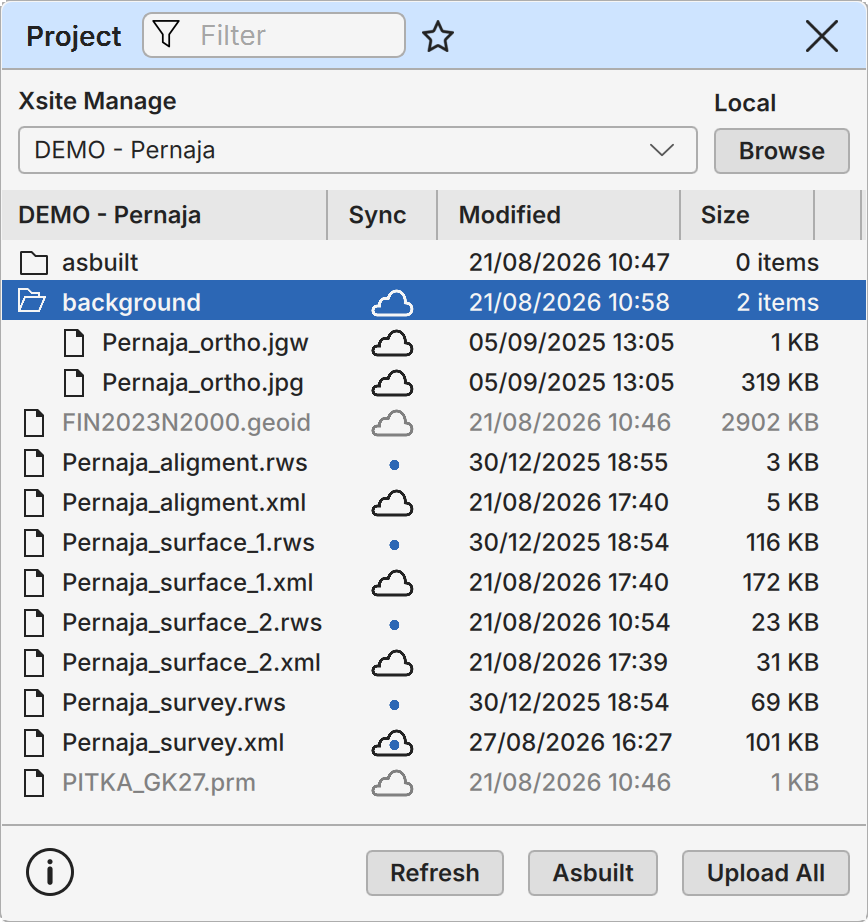
Local project is opened by clicking the Browse button at the top of the dialog or by dragging directory from the file explorer. Xsite Manage project can be opened from the drop-down list at the top.
Drop-down list contains available Manage sites. These are the same as those displayed in Manage My Workspaces page. Selecting the site automatically downloads its contents to the project tree. Files themselves are not loaded until they are actually used. Selecting the empty row at the top closes the current project.
Project tree displays files and subdirectories under the project folder. Each file has name, last modification time and size. Instead of size, number of items is displayed for folder items.
Locally available files are displayed normally. Remote Manage files not yet downloaded are displayed as greyed out. Their modification time and size are those reported by Manage.
Files can be opened directly from the tree by the pop-up menu item, mouse double click, Enter-key or by dragging them to the canvas or element list. Remote Manage files are automatically downloaded before opening.
Filtering
Project contents can be filtered by simple search string. If the filter field contains some string, only files and folders containing the string are displayed.
Star icon beside the field can be used to store the filter string permanently to a drop down list. List opens with down arrow key for stored filter selection. Filter string can be removed from the list with the crossmark icon.
Sync state
The second column displays current sync state for file or folder in Manage projects. There are three possible states:
 File or folder exists only in cloud or local copy is not edited.
 File or folder exists in cloud and local copy is edited.
 File or folder exists only locally.
Refresh
Refresh button at the bottom reloads current project state from Manage.
Asbuilt
Asbuilt points and lines can be downloaded from the Manage project by the Asbuilt button at the bottom of the dialog. It always loads all asbuilt objects available in the worksite. Objects are stored locally to a file asbuilt.xy.tdw in the asbuilt folder.
Upload all
Uploads all edited files to the Manage project.
Pop-up menu
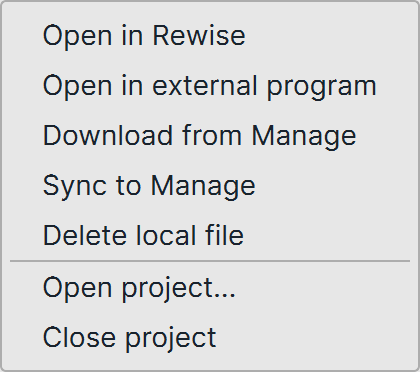
Secondary mouse button opens pop-up menu with additional functionality. Available commands depend on the current tree item type.
Expand / Collapse Expands or collapses the current folder item depending on its state.
Expand all / Collapse all Expands or collapses all folders under the current folder. Same commands in the header pop-up menu expand or collapse all project folders.
Open in Rewise Opens the file to the element list.
Open in external program Opens the in external application registered for its extension.
Download from Manage Downloads Manage file to the local file system.
Upload to Manage Uploads local file to the Manage project.
Upload this folder Uploads current folder to the Manage project.
Upload this and subfolders Uploads all folders under the current folder to the Manage project.
Delete local file Deletes local file.
Delete local folder Deletes local folder. Only empty folders can be deleted.
Open project Opens new local project. Same as the Folder button at the bottom.
Close project Closes the current project.