Aktiivinen ja valitut kohteet
Data can be manipulated through single active object or group of selected objects.
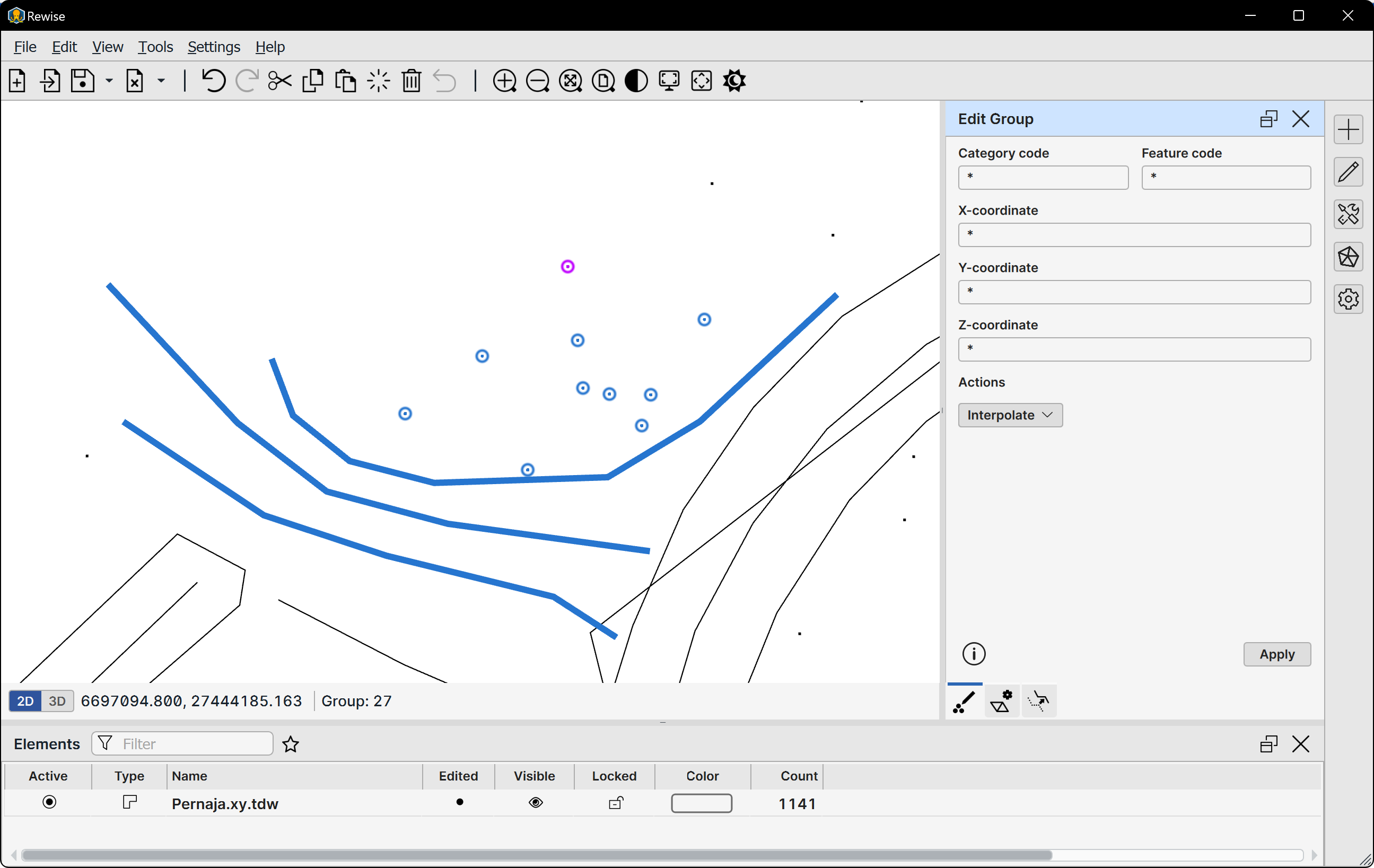
Selected items are displayed in blue. The active point and line are also considered to be part of the selected group.
Aktiivinen kohde
Active object refers to a single currently active object on canvas. It may be single point, line, text or alignment.
Objects are stored in elements in the Element list Points and lines may exist in both vector and surface elements. Texts are always in vector elements and each alignments are in a separate alignment element. Raster elements may never contain any objects.
Snapping
When the mouse cursor is above the object, selection preview is displayed. Active object is then selected by clicking it with primary mouse button. If there are multiple objects in the same location, selection list may appear for object choosing.
Multiple objects can be selected to the group by clicking them with the Ctrl-key. Only the latest one is active object.
Object snapping can be turned off by the option pop-up menu, status bar indicator or shortcut key Ctrl+Space.
Moving
Active single points and texts can be moved by clicking and dragging them with mouse and keyboard Shift-key. When dragged over existing point, and the snapping is on, moved point snaps to it for exact positioning. Otherwise, only horizontal coordinates are changed and object retains its original elevation. Text objects never snap to existing points. Note that this moving works only in 2D view mode.
Both Status bar and Edit Point display new coordinates during move. These are snap coordinates for snapped points.
Editing
Active object editing is available in Properties tool and object specific editing tools. Editing tool can be activated by double-clicking the object.
Selected group
Multiple objects can be selected when the Ctrl-key is pressed and an object is clicked. If the object is already selected, clicking it with the Ctrl-key will remove it from the selection. Pressing Esc-key or clicking another object without Ctrl-key resets the selection.
Selected objects can be removed with the Delete-key. This works only for vector file objects. Surface or road points cannot be deleted. Selected object attributes and coordinates can also be changed with the Edit Selected tool.
Deleting objects with the Ctrl-key deletes only active point. This can be used to delete the active line point from the selected line.
Road alignments cannot be selected. Multiple alignments can be removed through the Element list